
Discover & install
The Asset Dashboard opens on Discover AI assets: find agents, MCP servers and skills, view their details, and connect them to your tools.
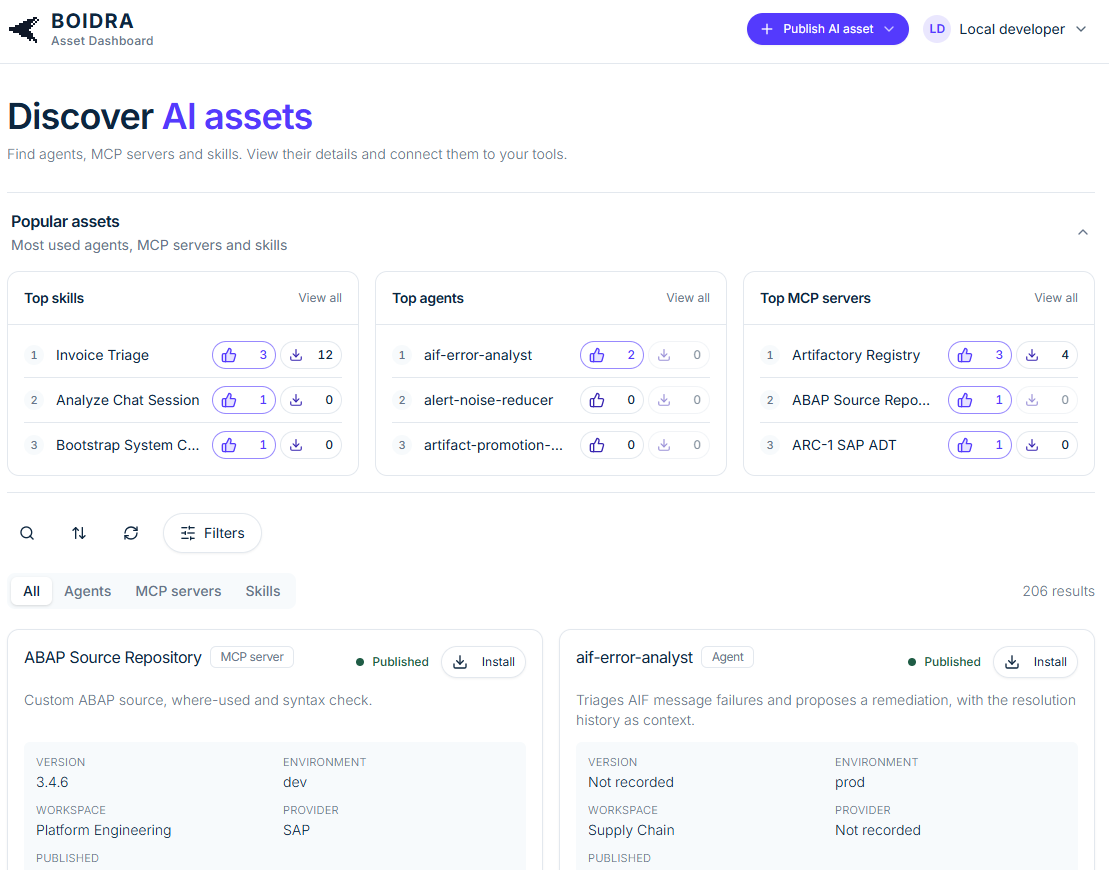
Popular assets
The top of the page answers "what are people actually using?" in three lists:
- Top skills
- Top agents
- Top MCP servers
Each entry shows two counts: likes (people who recommend it) and installs. Ranking by use means good work spreads between teams instead of being rebuilt. Use View all on a list to see the full ranking, or collapse the section when you know what you are looking for.
The catalogue
Below the popular lists is the full catalogue.
- Tabs narrow it to one type: All, Agents, MCP servers or Skills. The result count updates as you filter.
- Search, sort and Filters narrow it further; refresh reloads the list.
- Each card shows the asset's name, its type, a one-line description, its status (for example Published) and the facts you need to judge it:
| Field | Meaning |
|---|---|
| Version | The published version, or Not recorded if the owner has not set one |
| Environment | Where it runs: dev, qa or prod |
| Workspace | The owning team |
| Provider | Who provides it, for example SAP, or Not recorded |
| Published | When it was published |
Install
Press Install on a card to add the asset to your tools. Compatible assets can be connected to Joule Work, the Joule digital assistant and other clients; see Role-based suggestions for connecting Joule Work.
How an asset gets into the catalogue, from registration through review to publication, is described in Register & publish.