
Agents app
The Agents app is where administrators configure each agent. It is an SAP Fiori (SAPUI5) app in SAP Build Work Zone, next to the Connectors app and the Known Solutions app. It lists the agents registered in Boidra Platform; open one to decide what it may use and how it behaves.
To use it, you need the role collection Agent Administrator or Landscape Administrator. See Roles & access.
The agent list
The list shows every agent Boidra Platform lists: its name and description, version, stage (created, deployed or published), health (Healthy, Unhealthy or Unknown), workspace, owner and agent type. Filter it by Workspace and Kind; without a kind, only agents are listed.
An agent's page shows the same facts in its header, with its endpoint and its agent ID, and one section per area below.
What you configure per agent
| Section | What you decide | Example |
|---|---|---|
| Settings | The agent's type, and the settings that type declares | Type AIF resolution agent; Restart AIF messages on |
| Tools | Which MCP endpoints of the SAP operations platform the agent may call | aif, landscape, cis, grounding, solutions |
| Grounding | Which document collections it may search, from Amazon S3 today and SharePoint | S3 storage |
| Connectors | Which systems' landscape it may read | S4H/100 |
| Brand | Reserved for the agent's branding | Coming in a later release |
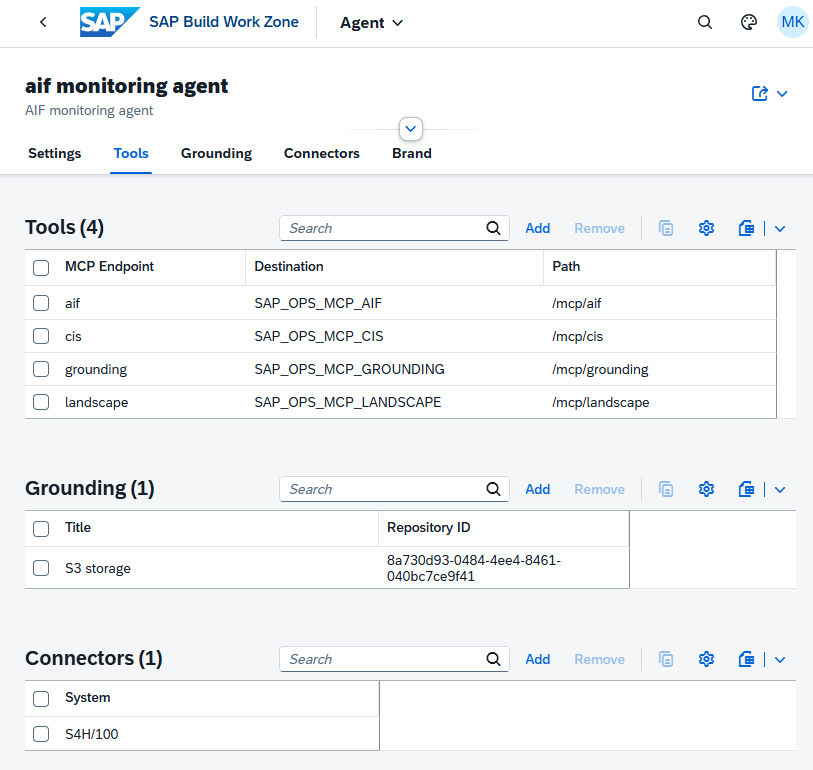
One agent in the Agents app: four of its tools, its grounding collection in Amazon S3, and the system it may read.
Settings
Change Agent Type gives the agent its type; for the SAP Operation Monitoring Assistant that is the AIF resolution agent. The type brings its own list of settings, each with a default. The table shows, per setting, its label with its name, the value in effect, the default, a description and, if any, a problem:
- Change Value sets a value, starting from the one in effect.
- Reset to Default deletes the stored value; it is available only when a value is stored.
- A stored value that does not fit the setting's rules is not used: the default is in effect, and Problem says why.
The AIF resolution agent declares 13 settings:
| Area | Settings |
|---|---|
| Restarts | Restart AIF messages, Restart wait (seconds), Restart wait in a synchronous call (seconds) |
| Cancels | Cancel AIF messages |
| Known solutions | Known solutions |
| Reports and presentations | Report link validity (hours), Default report period, Largest report file (bytes) |
| Joule | Joule view, Chart time limit (seconds) |
| Morning briefing | Briefing time zone |
| Data sources | AIF system, Allowed AIF MCP tools |
Every setting, its default and its range are described in Settings.
Tools
The MCP endpoints of the SAP operations platform the agent may call. Each one is reached through its own SAP BTP destination and its path on the MCP server:
| Tool | Destination and path | What the assistant reads or does through it |
|---|---|---|
| aif | SAP_OPS_MCP_AIF, /mcp/aif | AIF messages, errors, logs and payloads, interface configuration, statistics, and the restart and the cancel of a message |
| landscape | SAP_OPS_MCP_LANDSCAPE, /mcp/landscape | The confirmed landscape graph of its connectors |
| cis | SAP_OPS_MCP_CIS, /mcp/cis | SAP Integration Suite, live: errors, deployments and expiring certificates |
| grounding | SAP_OPS_MCP_GROUNDING, /mcp/grounding | A search over its grounding collections, such as your runbooks |
| solutions | SAP_OPS_MCP_SOLUTIONS, /mcp/solutions | The known solutions: fixes that worked before, and the save of your final decision |
- Add opens a dialog with the endpoints the agent does not have yet; choose one or more.
- Remove removes the selected endpoints, after a confirmation: the agent can then no longer call their tools.
The agent connects its tools when it starts, so restart the agent after you add or remove one. A skill whose tool is not added says so in its answer, under Limitations.
Grounding
The document collections the agent may search: interface specifications, runbooks, mapping documents, past incidents and SAP guides. A resolution proposal searches them with the error, the interface and what it found, and cites the documents that match (runbook: <document>).
Grounding runs on SAP AI Core document grounding (Grounding Management in the Generative AI Hub of SAP AI Launchpad). You keep the documents where they are; a grounding pipeline turns each one into searchable chunks and keeps the collection in sync with its source.
| Document source | Status |
|---|---|
| Amazon S3 object store | In use today |
| Microsoft SharePoint | Can be added: a grounding pipeline on a SharePoint site works the same way |
Add a collection:
- Put the documents in an S3 bucket, or in a SharePoint site.
- In SAP AI Launchpad, open Grounding Management and create a pipeline for that source. SAP AI Core converts every document into chunks and synchronises them into a data repository.
- Copy the data repository's ID.
- In the Agents app, open the agent, choose Grounding > Add, and enter a title (for example S3 storage) and the repository ID.
Remove takes the selected collections away from the agent, after a confirmation: it can then no longer search them.
For example, the SAP Application Interface Framework 4.0 Master Guide (PDF) in an S3 bucket becomes 156 searchable chunks the assistant can cite.
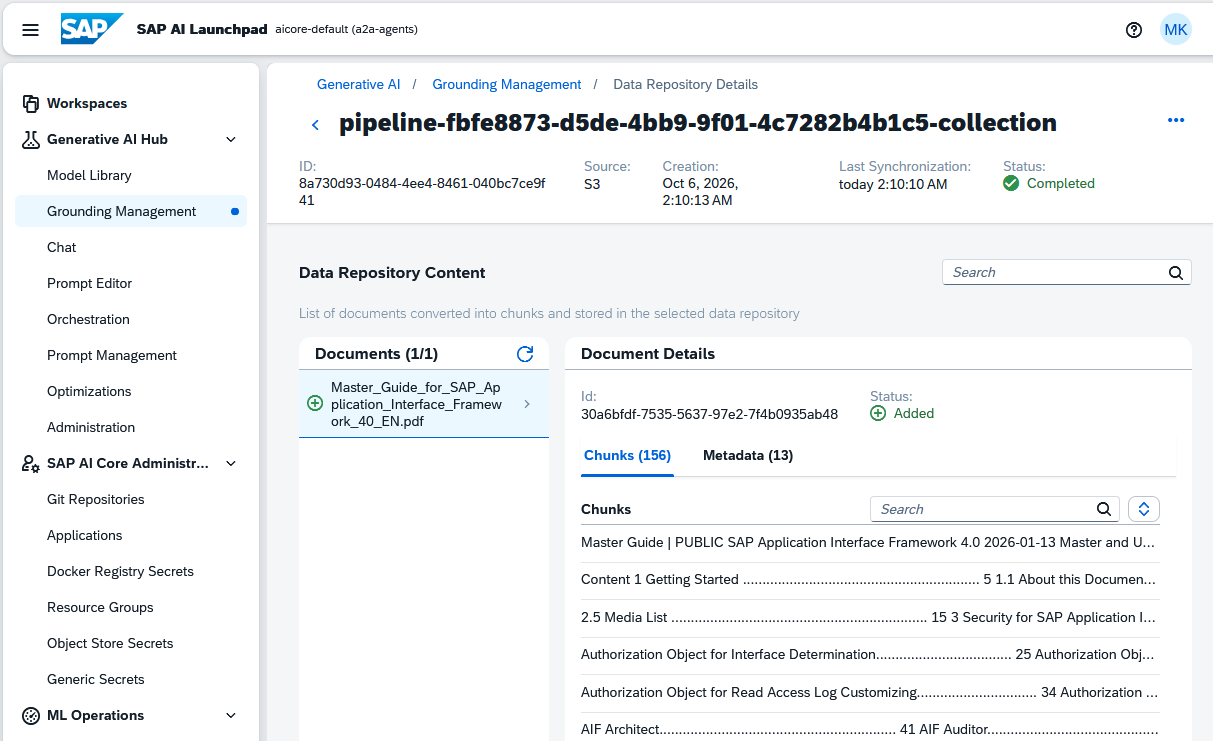
The grounding collection in SAP AI Launchpad: documents from Amazon S3, split into chunks the assistant can search.
Connectors
The SAP systems whose landscape the agent may read, such as S4H/100.
- Add lists the systems the agent does not read yet: SAP systems, SAP Integration Suite tenants, and the AIF of an SAP system pulled over OData. A system appears once a snapshot of it has been uploaded or pulled in the Connectors app.
- Remove removes the selected connectors, after a confirmation: the agent can then no longer read the landscape of these systems.
A deactivated system shows as (deactivated) and is not read. A connector whose system was deleted is marked with a warning: it leads nowhere.
Brand
Reserved for the agent's branding, in a later release.
Set up an agent, step by step
- Deploy and register the agent in Boidra Platform. It then appears in the Agents app.
- Choose its type under Settings.
- Add its tools: for the assistant,
aif,landscape,cisandgrounding, andsolutionsfor the known solutions. - Add its grounding collections, such as your runbooks.
- Add its connectors: the systems it may read.
- Adjust its settings, such as restarts, cancels and known solutions, then restart the agent so it reads them.
- Ask in Joule. Try the example prompts.
Changes take effect on the next start
The agent reads its configuration when it starts: its settings, its tools, its grounding collections and its connectors. After a change, restart the agent; no redeploy is needed. Every change in the Agents app is written to the SAP Audit Log service.