
Landscape connector
The landscape connector gives the SAP Operation Monitoring Assistant a complete, confirmed picture of how your SAP landscape is integrated: which partners exchange which IDocs, through which ports, RFC destinations, web services and jobs, and where an interface leaves SAP for SAP Integration Suite. The assistant answers landscape questions from this picture instead of guessing.
You manage it in the Connectors app, an SAP Fiori (SAPUI5) app in SAP Build Work Zone, with the role collection Landscape Administrator (see Roles & access). The same landscape service keeps the configuration of the agents, set in the Agents app, and the known solutions, managed in the Known Solutions app.
What it lets the assistant answer
- "Do we have interfaces with partner 10100001?"
- "Where does ORDRSP for 10100001 go after S/4?"
- "Which IDocs of supplier 10300007 fail?"
- "How is partner 10300007 set up?"
- "How current is the landscape?"
Every answer names the date of the snapshot it is based on.
How it works
 SAP S/4HANA or ECC ──── report Z_LSX_EXPORT ───┐
 AIF OData service ───── pull ──────────────────┤
 SAP Integration Suite ─ pull ──────────────────┼──▶ Connectors app ──▶ Pending ──▶ Confirm ──▶ Landscape graph ──▶ Assistant
 SAP Cloud ALM ───────── where in place ────────┘     checked             reviewed               (what agents
may see)- Extract. A snapshot of the system's integration configuration is taken, in one of the four ways below.
- Check. The connector checks every snapshot: its format, that it is complete, and that it holds no credentials. A snapshot that fails is rejected, with the reason.
- Review. The snapshot waits as Pending. An administrator looks through it in the Connectors app: overview, areas, records, software components and the graph.
- Confirm. One button. Only confirmed snapshots reach agents; the one confirmed before is kept as history.
- Decide what agents see. Hide areas of a system from agents, and choose in the Agents app which agents may read which systems.
- Ask. The assistant reads the confirmed graph and answers in Joule.
Four ways to extract
| Way | Good for | What runs |
|---|---|---|
| Manually | A first look, or a one-off | An administrator runs the report and uploads the file |
| Background job | Keeping the landscape current | The report runs on a schedule in SAP |
| OData service or API | AIF and SAP Integration Suite, without a report | The connector pulls through a BTP destination |
| SAP Cloud ALM | Customers who already run SAP Cloud ALM | Cloud ALM is the source |
Manually
An SAP administrator runs the read-only report Z_LSX_EXPORT in the system. It writes one snapshot file; download it and upload it in the Connectors app with Upload Snapshot. Choose all areas, or only the ones you need.
As a background job
Schedule the same report as a background job (transaction SM36), for example once a week. Each run writes a new snapshot file to a directory on the application server, ready to upload, so the landscape stays current without anyone running the report by hand.
Through an OData service or API
No report in the system: the connector pulls the data itself, through an SAP BTP destination, in the background.
- Pull from AIF reads the AIF OData service of the SAP system: the interfaces, their key fields and their message counts.
- Pull Integration Suite Tenant reads a Cloud Integration tenant through its API: packages, iFlows, configurations, value mappings, deployed artifacts and endpoints.
The next pulls are one click: Pull Snapshot on the system's page.
Through SAP Cloud ALM
If your company already runs SAP Cloud ALM, it can be the source of your landscape, instead of extracting from every system one by one. Contact us to set this up for your Cloud ALM tenant.
What is extracted
The report reads 28 areas, each with a status: populated, empty, not applicable, access denied or failed.
| Group | What it covers |
|---|---|
| IDoc and EDI | Partners, inbound and outbound partner profiles, ports, message and IDoc types, process codes, IDoc statuses, EDI partner conversion |
| ALE | Logical systems, the distribution model, change pointers |
| RFC | RFC destinations, trusted systems, queues |
| Web services | SOAP providers and consumers, OData services, ICF services |
| Files, jobs and output | Logical file paths, interface background jobs, EDI output |
| PI/PO | Connections to SAP Process Integration |
| Usage | IDoc volumes and errors of the last 90 days |
| AIF | Interfaces, mappings, value mappings, checks and actions, engines |
| Your own tables | Customer tables, when you add them to the configuration |
A pulled SAP Integration Suite tenant adds its packages, iFlows and endpoints. An HTTP endpoint that an SAP system calls and the iFlow that serves it meet in one place in the graph, so the assistant can follow a message from SAP into Integration Suite.
Safe by design
- Read-only. The report only reads; it changes nothing in SAP.
- Credentials never leave the system. Password fields are never read, credential-like fields are refused, and user names and passwords are removed from URLs.
- Personal data is classified. Every field is technical, infrastructure or personal. Personal fields never enter the graph the agents read.
- Nothing reaches agents unconfirmed. Only a snapshot an administrator confirmed is visible.
- Audited. Every upload, every read of records and every configuration change is written to the SAP Audit Log service.
The Connectors app
Systems and snapshots
The list shows every system: SAP systems, AIF and SAP Integration Suite tenants. A system's page shows its client, product and status (Active or Deactivated, with who deactivated it and when), and two tabs:
- Snapshots: the snapshot history, with when each snapshot was extracted, its status (Pending, Confirmed, Superseded, Discarded, Rejected), the number of records, and how many areas were read, denied or failed. Upload Snapshot adds a new one.
- Areas Hidden from Agents: the areas no agent may read for this system, with who hid each one. See Decide what agents can see.
Deactivate, Activate and Delete in the header act on the whole system.
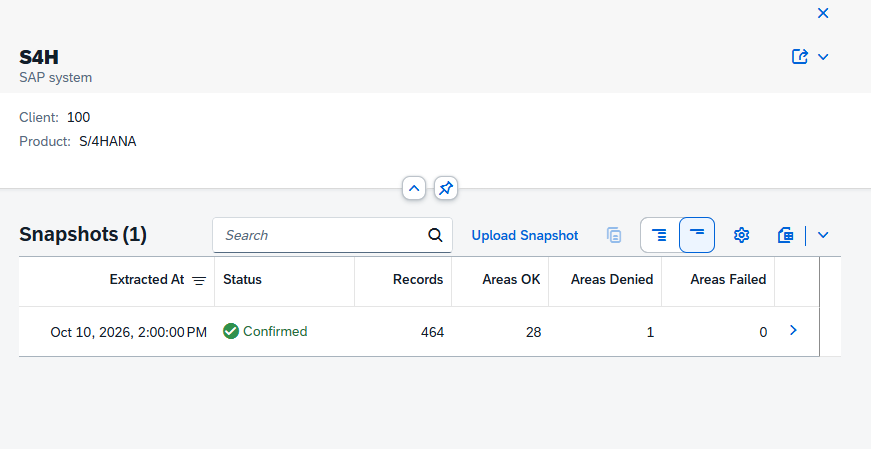
A system's snapshot history: one confirmed snapshot, with its records and how many areas were read, denied or failed.
The snapshot viewer
Each snapshot opens with its status, its source (system, client, product, release, software components, extractor version), who uploaded it and when, and who confirmed it. Its tabs:
- Overview: records, the usage window (90 days), areas populated, empty, denied or failed, and the fields by sensitivity (personal, infrastructure, excluded).
- Areas: the status of every area, and whether agents see it.
- Records: every record, searchable. An area opens as a table per source, with the SAP labels as column headers, for example the message types ORDERS, ORDRSP, INVOIC and DESADV with their descriptions.
- Software Components: the components with their release and support package.
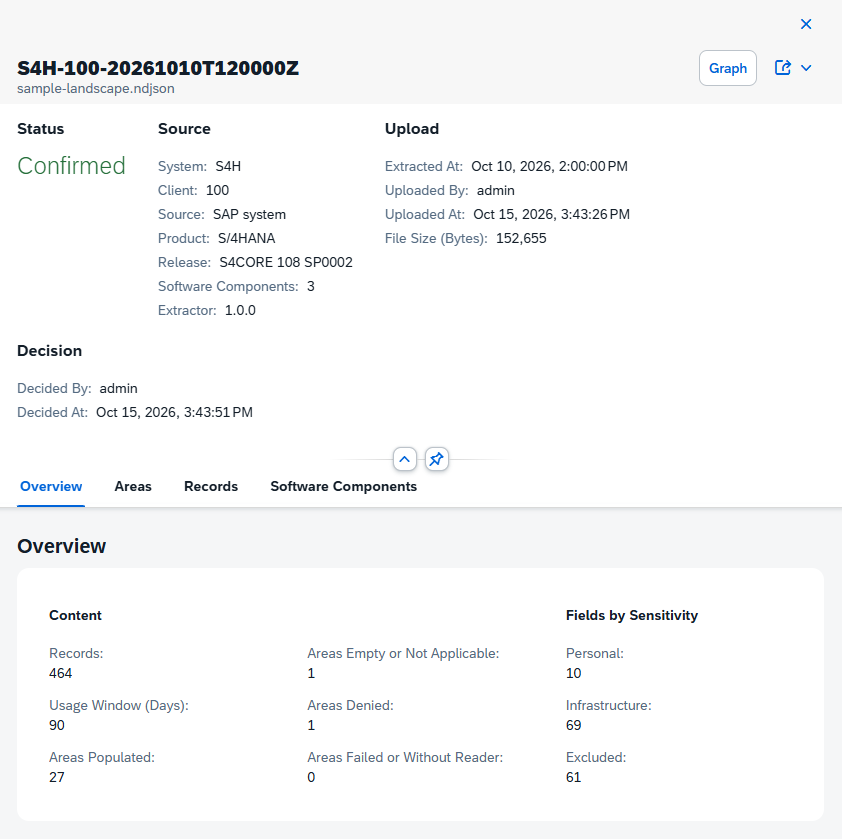
The snapshot viewer: where the snapshot comes from, who uploaded and confirmed it, and what it contains.
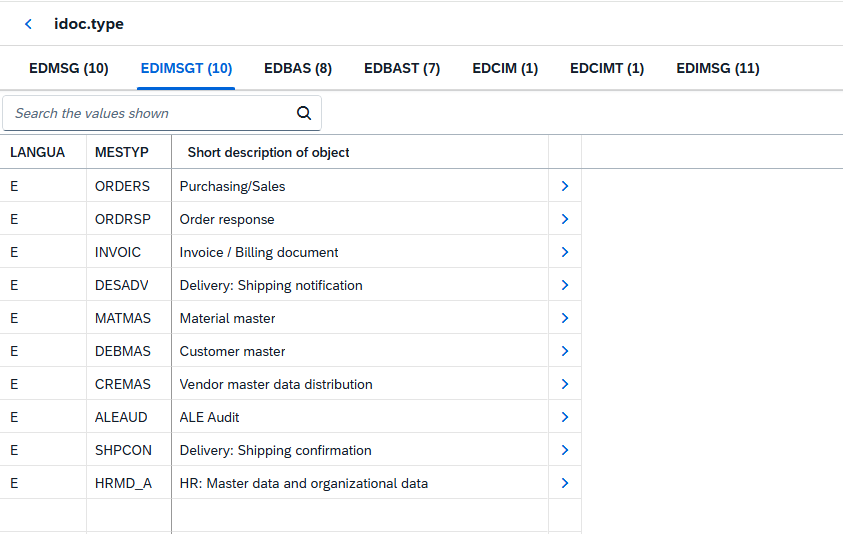
The records of one area, idoc.type: a tab per SAP table, with the SAP labels as column headers.
The graph
Graph opens the snapshot as a network you can explore. Search for a partner number, a message type, a port, a destination, an iFlow, or a business word such as "shipping notification". Click a node to add its neighbours; the side panel shows its kind, its SAP text and its properties. Filter All / Standard / Custom to see only your own Z and Y objects.
For example, searching for the AIF namespace ZMM shows its interface ZMM/INVOIC v1, its check ZMM_PO_EXISTS and its action ZMM_CREATE_INVOICE ("determines the invoicing party, then creates the supplier invoice"), which calls BAPI_INCOMINGINVOICE_CREATE1 and ZAIF_INVOIC_DETERMINE_SUPPLIER.
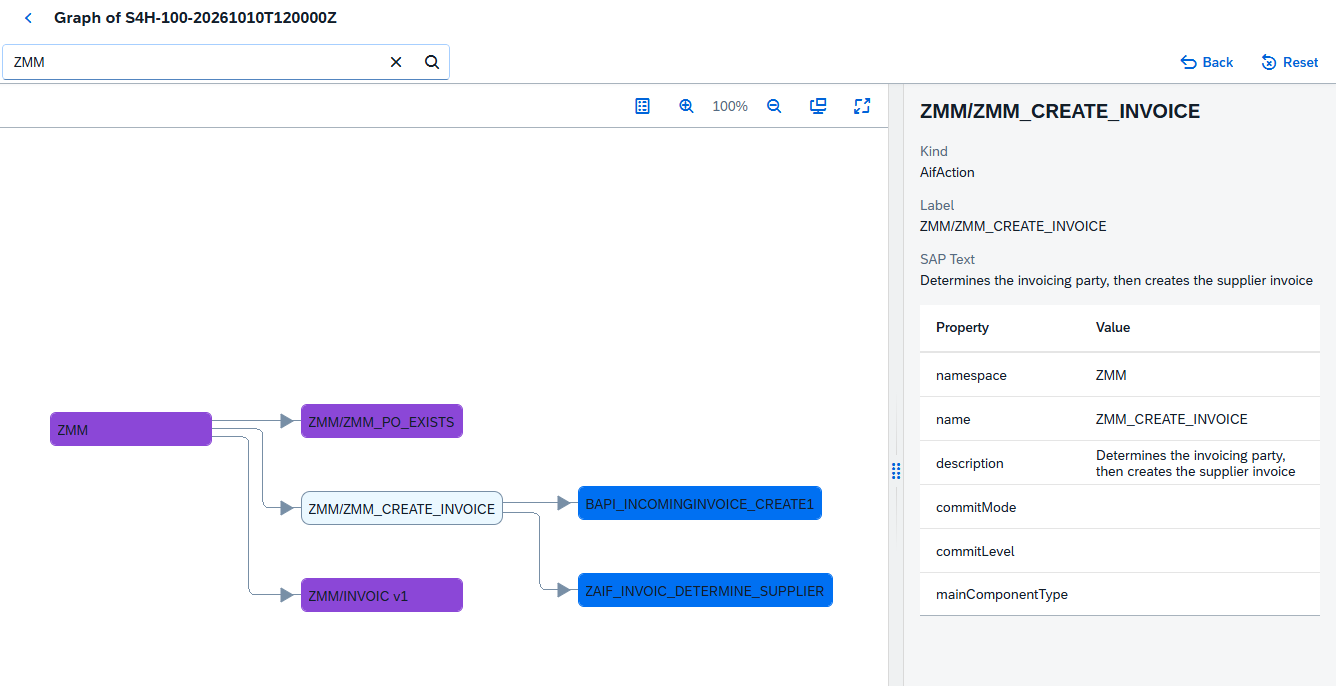
The graph, searched for the AIF namespace ZMM: its interface, check and action, and the function modules the action calls.
Decide what agents can see
Three levels, from the finest to the widest:
| Level | Where | What it does |
|---|---|---|
| An area of a system | Connectors app, system page, Areas Hidden from Agents | No agent reads that area of that system |
| A whole system | Connectors app, system page, Deactivate | No agent reads the system at all |
| A system for one agent | Agents app, Connectors | Only the agents you choose read the system |
Hide an area
- Open the system in the Connectors app and choose the tab Areas Hidden from Agents.
- Choose Add and pick the areas to hide, for example the outbound partner profiles or the RFC destinations.
- The list shows each hidden area and who hid it. Remove shows an area to agents again.
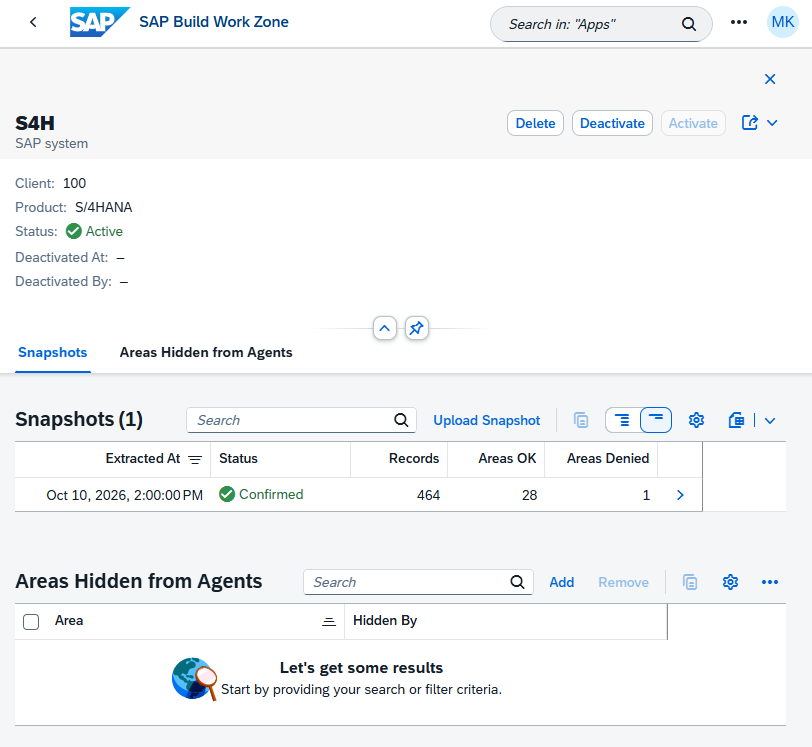
A system's page: Deactivate, Activate and Delete for the whole system, and the areas hidden from agents.
The change applies at once to the system's confirmed and pending snapshots: a hidden area is left out of the graph the agents read. The assistant then says the area is hidden by the administrator, never that nothing is there. Administrators still see every record, and the snapshot's Areas tab shows each area as visible or hidden to agents.
Deactivate a system
Deactivate hides the system, its snapshots and its graph from every agent without deleting anything. Uploads and pulls go on, and Activate shows it to agents again as it was. Delete removes the system and its snapshots for good.
Choose which agents read which systems
In the Connectors section of the Agents app, add the systems each agent may read. A system can be added once a snapshot of it has been uploaded or pulled.
Example: where an order response goes
A question such as "Where does ORDRSP for 10100001 go after S/4?" follows this path through the graph:
Partner 10100001
  └─ outbound partner profile: ORDRSP
      └─ port A000000001
          └─ RFC destination CPI_EU10
              └─ HTTP endpoint …/cxf/idoc/orders
                  └─ SAP Integration Suite iFlow "Orders to partner"
The assistant answers with the path as tables, the date of the snapshot, and any gaps that affect the answer.