
Blog
SAP AI From Prototyping to Production
Mateusz17 min read
From Prototype to Production: SAP AI Agents with Familiar Tools and Boidra Platform
Building a useful SAP AI agent takes more than writing a prompt. Teams need to connect the agent to business systems, deploy its code, test its responses, and show which version produced which result. If the agent should also be available in SAP Joule, that adds another integration and deployment path to manage.
Boidra Platform brings these activities into one connected workflow. A team starts from a Git repository, develops the agent locally against real SAP BTP services, pushes to deploy, and tests the result through Boidra chat, Joule, or Microsoft Copilot. The prototype becomes something colleagues can try, with a visible link between the source code, the deployment, and the test results.
The workflow builds on familiar tools: GitHub for source code, SAP BTP for deployment targets and connections, Joule for the SAP assistant experience, and Microsoft Copilot Studio as an alternative entry point over A2A. Boidra brings deployment, testing, tracing, and production promotion together around them.
This walkthrough uses an SAP Application Interface Framework (AIF) monitoring agent as the example: an agent that helps users explore interfaces, investigate errors, and get guidance on AIF. The same workflow is a practical starting point for any focused SAP agent prototype.
The development lifecycle at a glance
- Start from an empty repository. The Create agent wizard connects it, Boidra Platform generates the agent skeleton, and you choose a new or existing Joule assistant for the agent.
- Develop locally in hybrid mode. Run the agent on your machine, bound to services in the BTP development subaccount.
- Push to deploy to Development. Each push to the connected branch triggers a new deployment to the Development environment on SAP BTP.
- Test and inspect. Use Boidra A2A chat, Joule, or Microsoft Copilot Studio, then check traces and the deployed source.
- Promote to Production. Copy the validated development deployment to the production subaccount.
The sections below walk through each step.
1. Start with a focused AI asset
Before opening the wizard, define what the agent should help a user accomplish. For the AIF example, useful test scenarios include listing interfaces, checking interface health for a period, and investigating a specific message.
Keep the first version narrow enough to evaluate. A good prototype demonstrates one business task and makes the result easy to inspect. Where the task needs live SAP data, the implementation also needs the right tools, connections, and access permissions.
An agent is one type of AI asset. Supporting tools and reusable capabilities are assets too: Boidra Platform keeps agents, MCP servers, and skills in one catalogue, so teams can discover and manage these components in one place.
2. Create the agent in the wizard
The Create agent wizard has three stages: Agent, Source & Deployment, and Configure. You identify the agent, connect it to a repository and a deployment target, then complete the configuration.
Start with the agent details. Use a name that says what the agent does, such as "AIF monitoring agent", so testers can recognise it later in the agent overview and the chat selector.
3. Connect a repository and choose the deployment target
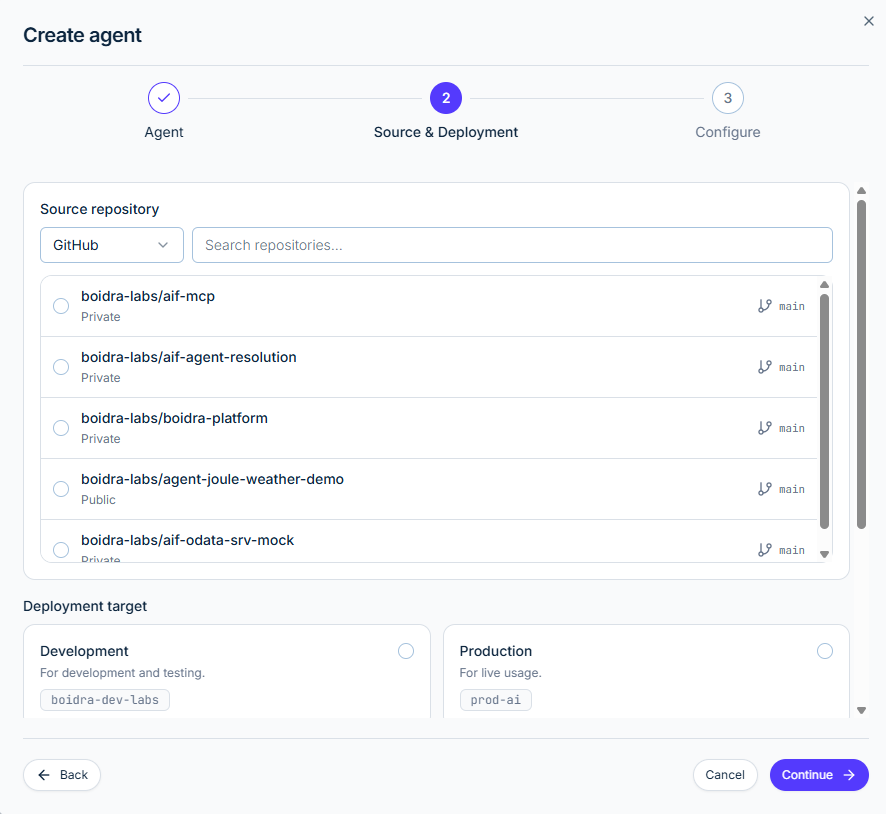
In Source & Deployment, choose the source provider and select the repository for the agent. With GitHub selected, the wizard lists your repositories with their visibility and branch, and a search field helps you find the right one.
The repository can already contain an agent implementation, or it can be empty. For an empty repository, Boidra Platform generates the agent skeleton, so the team starts from a consistent project structure instead of a blank page.
This step ties the agent to its code. Every deployment record later shows the branch, commit identifier, and commit message, so it is always clear which version is being tested.
Next, pick the deployment target: Development (for development and testing) or Production (for live usage). For a new prototype, choose Development and continue to configuration.
4. Choose a Joule assistant, or share an existing one
Decide how testers will reach the agent. Boidra chat is the direct testing route. If the agent should also be available in Joule, choose the Joule assistant it will join during configuration.
You do not need a new assistant for every agent. Boidra lists the Joule assistants that already exist and shows, for each one:
- who can access it: the users, roles, or groups that see the assistant in Joule
- which capabilities it already has: the agents deployed into it so far
- where it lives: the environment and BTP subaccount, Development or Production
With that overview, the team can decide deliberately: add the agent's capability to an assistant that already reaches the right users, or keep it separate. Agents that share an assistant sit side by side in the same Joule experience, so users do not have to switch assistants for related tasks.
The AIF example works this way. The AIF monitoring agent and an AIF error-resolution agent share one assistant, so users can check interface health and work on failed messages in the same place. When the next AIF agent is ready, its capability joins the assistant users already have, instead of arriving as yet another assistant to find.
Adding a capability to an assistant makes it reachable for everyone who can access that assistant, so check the access list before adding an agent that works with sensitive SAP data. Record the chosen assistant together with the environment and source version, so another tester can reproduce the setup.
5. Review the deployment specification
Complete the Configure stage and review the deployment specification. Check the selected source, the target environment, and any runtime settings or service connections the implementation needs. For a Joule-enabled deployment, also review the assistant and connection settings.
This is where a prototype becomes a concrete deployment: a specific implementation, running in a specific environment, with the configuration it needs. After deployment, the same settings stay available under Deployment settings on the deployment page.
6. Develop locally with hybrid bindings
With the skeleton in place, clone the repository and continue development on your machine. In a hybrid setup, the agent runs locally but is bound to service instances in the BTP development subaccount, for example SAP AI Core for model access, and the destinations and authentication the agent uses to reach SAP systems. You get a fast edit-and-run loop against real services, without waiting for a deployment after every change.
This is where the agent takes shape: its instructions, its tools, and its SAP connections. In the AIF example, the tools include aif_resolve_period and aif_interface_statistics, which appear later in the traces.
Keep binding details and credentials out of Git. Store them in git-ignored local files or in your environment, so the repository holds code and configuration but no secrets.
7. Push to promote local work to Development on BTP
Local runs are for iterating. When a version is ready for others to try, push it. Each push to the connected branch triggers a new deployment to the Development environment on SAP BTP, so the version testers use always matches a commit in the repository.
Every deployment runs the same stages, including the Joule integration when it is enabled. If a push breaks the build, the deployment history shows which commit caused it.
8. Follow deployment progress and diagnose failures
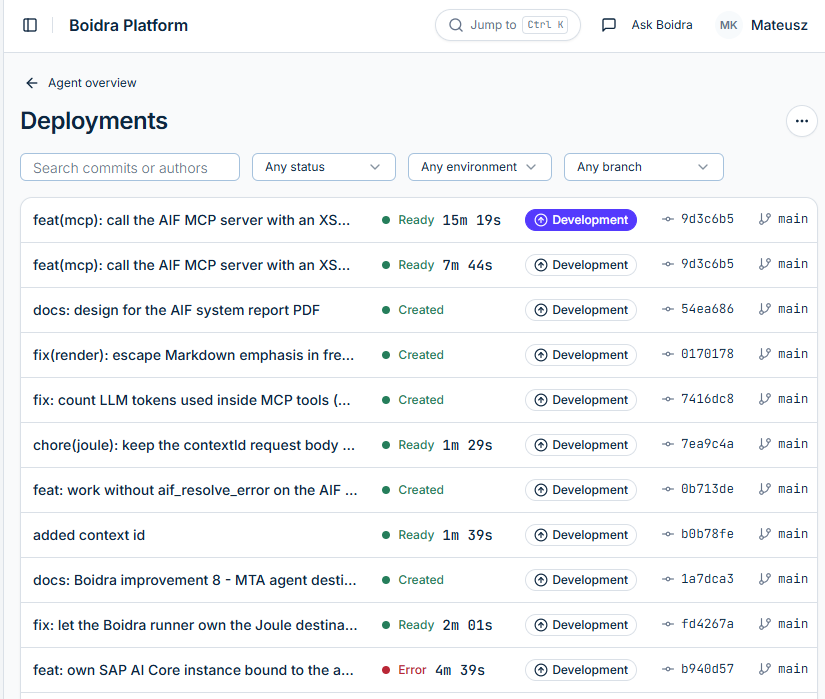
After each push, use Deployments to follow the status. The history shows commit messages, statuses, durations, environments, commit identifiers, and branches. You can search by commit or author and filter by status, environment, or branch.
The history in this example includes Created, Ready, and Error records. When a new version fails, the team can find the affected commit and open its details.
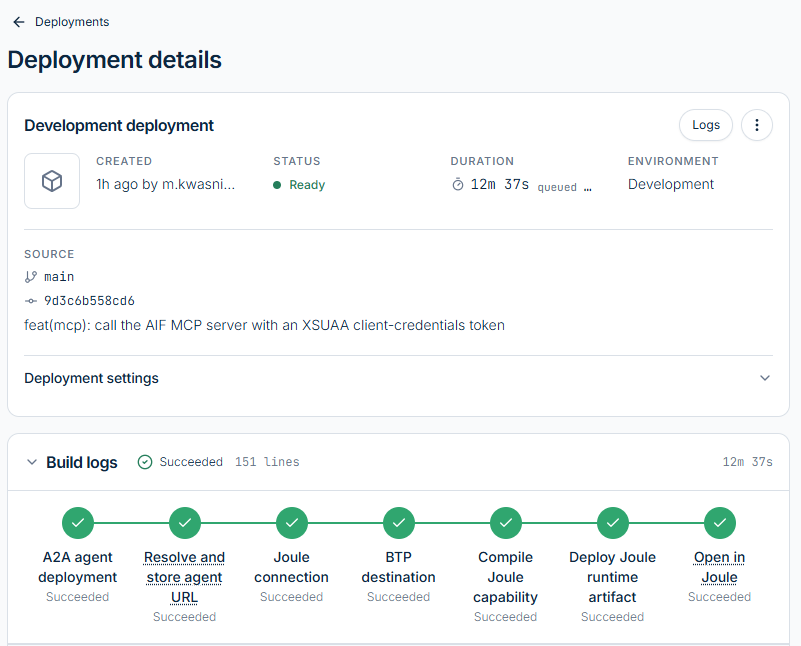
The details view gives more specific evidence. For the successful Joule-enabled deployment in this example, the build stages are:
- A2A agent deployment
- Resolve and store agent URL
- Joule connection
- BTP destination
- Compile Joule capability
- Deploy Joule runtime artifact
- Open in Joule
Each stage shows Succeeded, and the build logs are one click away. The stages separate deploying the agent itself from the work needed to make it available in Joule, so a failure points to the right layer straight away.
9. Use deployment history for CI/CD monitoring
For continuous integration and continuous delivery (CI/CD), the practical questions are: which change is running, where was it deployed, and did the deployment succeed?
Because every push creates a deployment, the history answers all three in one place. A tester can match an agent response to a deployed commit, a developer can inspect a failed deployment, and a reviewer can check the environment and status before evaluating a release. Additional repository checks or approval gates depend on your own pipeline, so document them for your setup.
Keep in mind that a successful deployment is only part of validation. Ready confirms the deployment state. Business testing still has to show that the agent gives useful, accurate answers and uses the intended SAP data.
10. Share and test the agent without Joule
Testing does not require Joule. Teams can use Boidra's A2A chat to talk to the deployed agent directly, validate its responses, and collect evidence before configuring a Joule integration. Any A2A-compatible client can also reach the agent through its configured endpoint. A2A (Agent2Agent) is an open protocol for communication between agents and compatible clients.
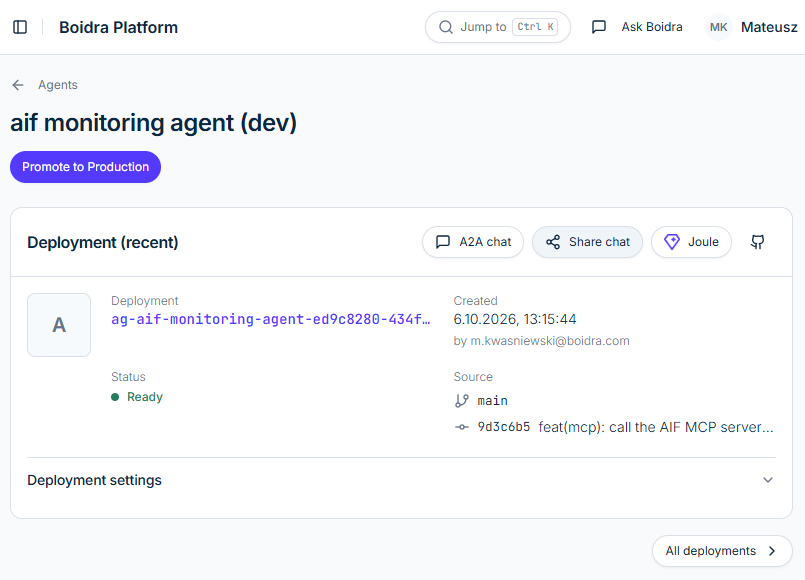
Once the deployment is ready, the agent overview offers A2A chat and Share chat actions. The team can try and share the prototype through Boidra without making Joule part of every test session. Who else can open it depends on your sharing and access settings.
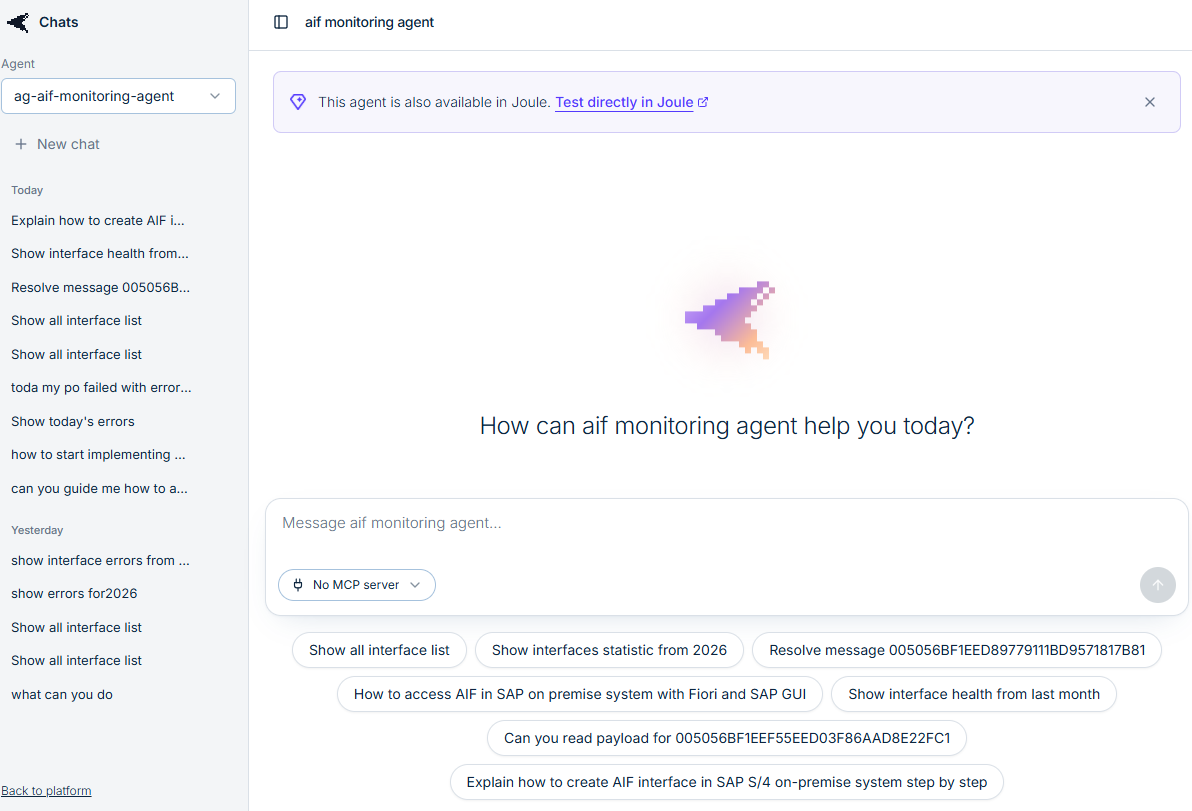
The AIF chat screen has an agent selector, conversation history, and suggested prompts. The prompts are a convenient starting point for repeatable demos, such as "Show all interface list" or "Show interface health from last month".
11. Connect the agent to Microsoft Copilot through A2A
The same A2A-enabled agent can also serve a Microsoft Copilot experience through Microsoft Copilot Studio. Copilot Studio can connect to an external agent over A2A, so its agent can delegate work to the SAP-focused agent (Microsoft documentation: connect to an external agent over A2A). Users get another way to reach the agent's capabilities, while the SAP agent keeps running in its deployed environment.
For this route, configure the external-agent A2A connection in Copilot Studio with the deployed agent's connection details and the required authentication. Then test a representative SAP scenario through Copilot and record the response alongside the deployed source version. This connection is configured separately: Share chat in Boidra does not publish the agent to Copilot by itself.
That gives teams three practical ways to evaluate and expose the agent:
- Boidra A2A chat for direct testing
- SAP Joule for the SAP assistant experience
- Microsoft Copilot Studio over an A2A connection
Choose the entry point that fits your users and the environment available for the prototype.
12. Test through Joule and capture evidence
For an agent connected to Joule, the overview has a Joule action, and Boidra chat shows Test directly in Joule. Run the same scenario through both entry points to check the direct agent experience and the Joule integration.
Below, Joule answers a request for step-by-step guidance on creating an AIF interface. As with any generated answer, review it against the relevant SAP documentation and your system context.
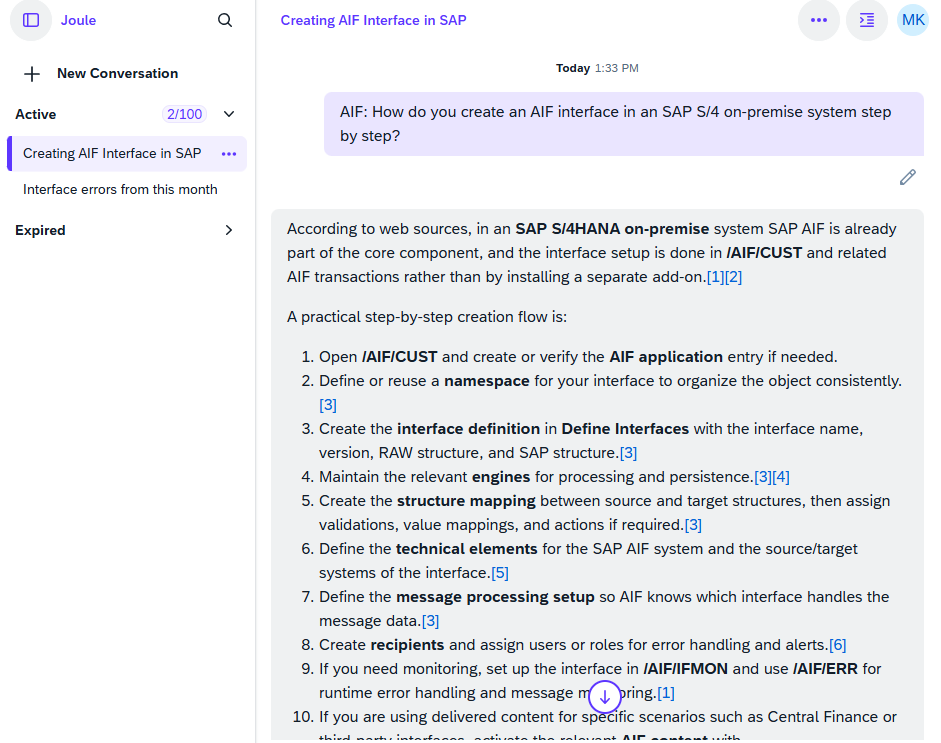
If the agent shares an assistant with other agents, test those too. Joule routes each request to a capability based on its scenario descriptions, so a new capability with overlapping descriptions can send a question to the wrong agent. Run at least one representative prompt per agent in the assistant, for example an interface health question and a failed-message question in the AIF assistant, and confirm each one reaches the intended agent.
For each meaningful test, capture:
- the prompt and the expected outcome
- the actual response
- the environment and the deployed commit
- relevant logs, traces, or screenshots
Reviewers get evidence they can assess, and developers can repeat the scenario after a change.
13. Inspect traces to see what the agent actually did
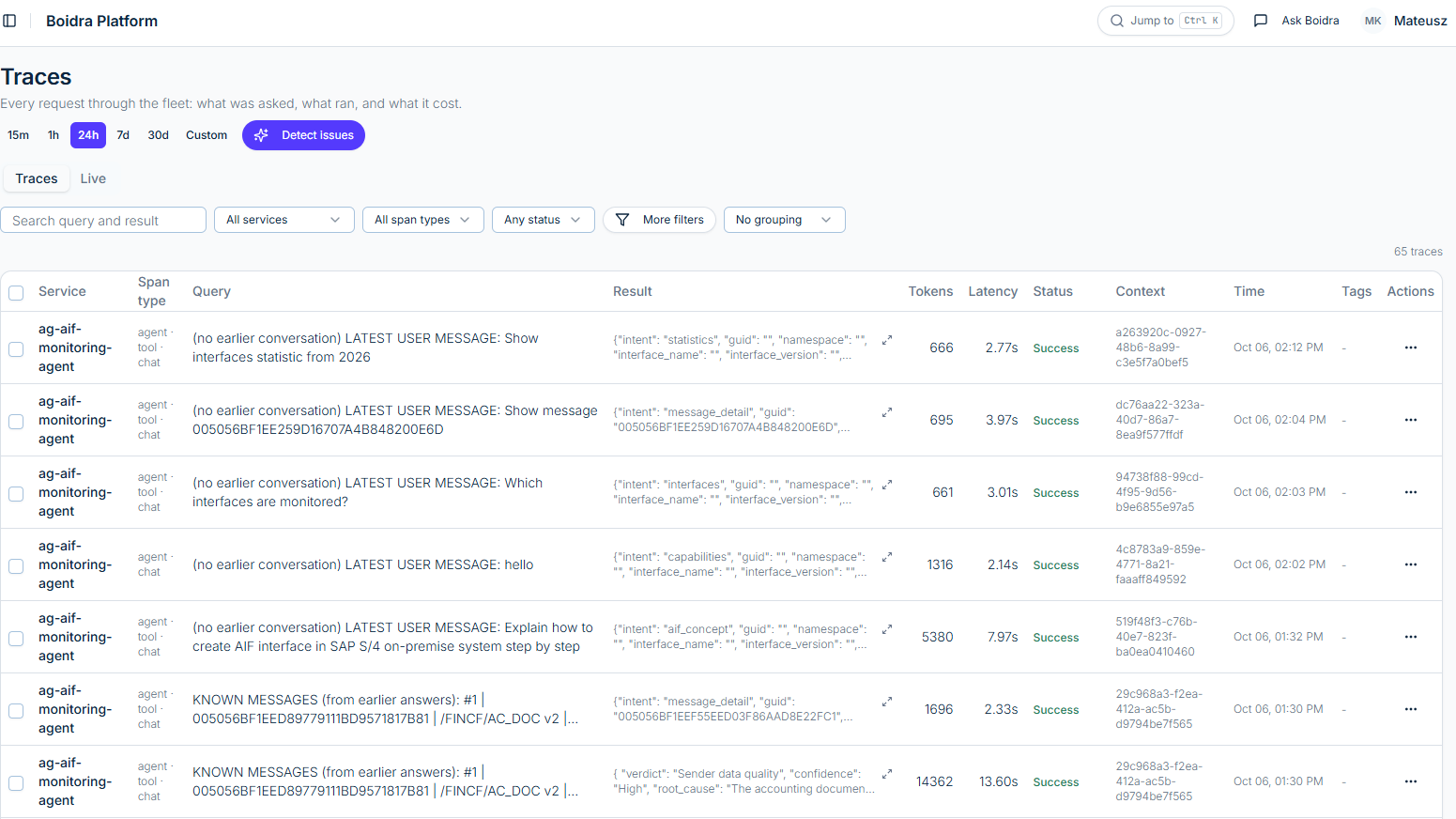
A chat response shows the final answer. Tracing shows the execution behind it. Boidra's Traces view lists each request with its service, span type, query, result, token count, latency, status, context identifier, and time. Time ranges, search, and filters help you find the run you are investigating.
In this example, the trace list includes requests to show interface statistics, inspect a message, and explain AIF interface creation. A tester can find the matching request and compare its recorded input and result with the answer seen in chat.
Open a trace to see Details & Timeline. Here it shows the overall agent run, a chat span, and tool spans for aif_resolve_period and aif_interface_statistics, each with its duration. Selecting a span reveals its Inputs / Outputs, next to tabs for attributes and events.
For the period-resolution tool, the input is period: 2026 and the output is the resolved date range for that year. That is concrete evidence of how the agent interpreted the request before it fetched interface statistics. When an answer looks wrong, developers can check the interpreted period, inspect the tool results, and see where the time went.
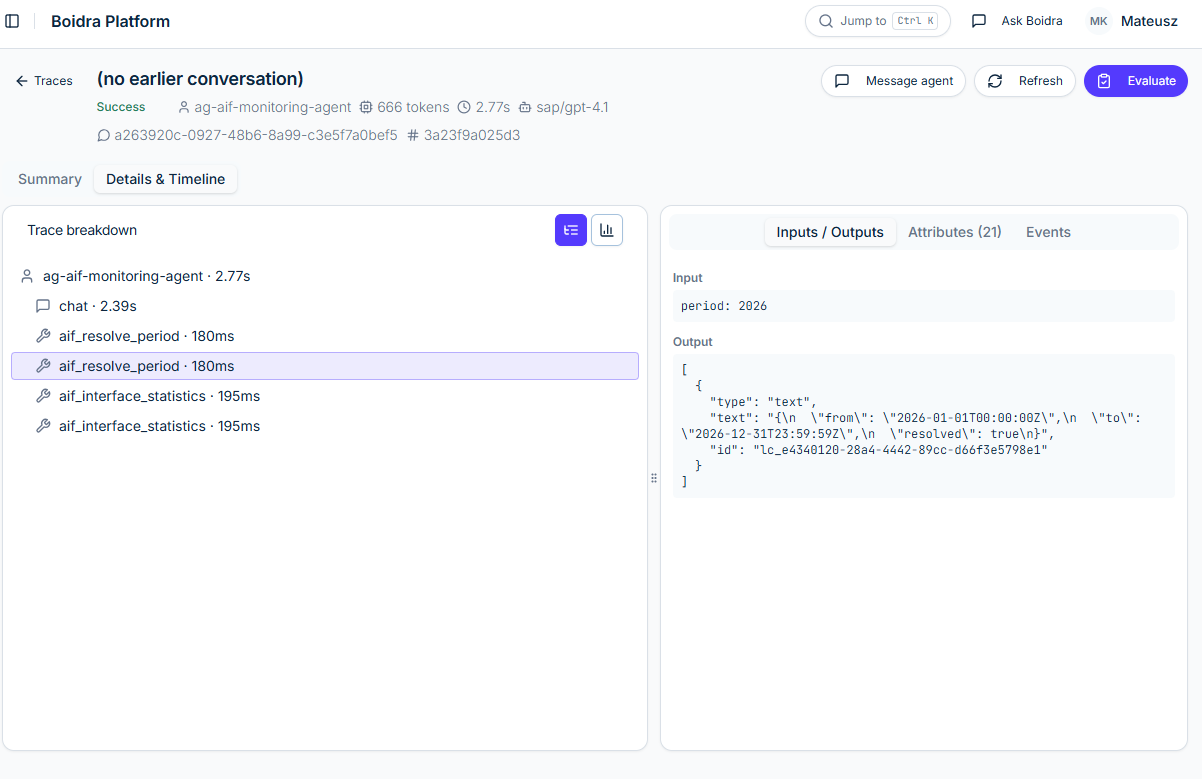
The trace header shows the run status, token count, duration, and model. These execution metrics complement business validation: a successful run still needs an accurate and useful result. The Evaluate action is the entry point for evaluating a run.
Include the trace identifier and the relevant tool inputs and outputs in your test evidence. Together with the chat transcript and the deployment record, they explain what the user asked, what ran, and what came back.
14. Inspect the source behind a deployment
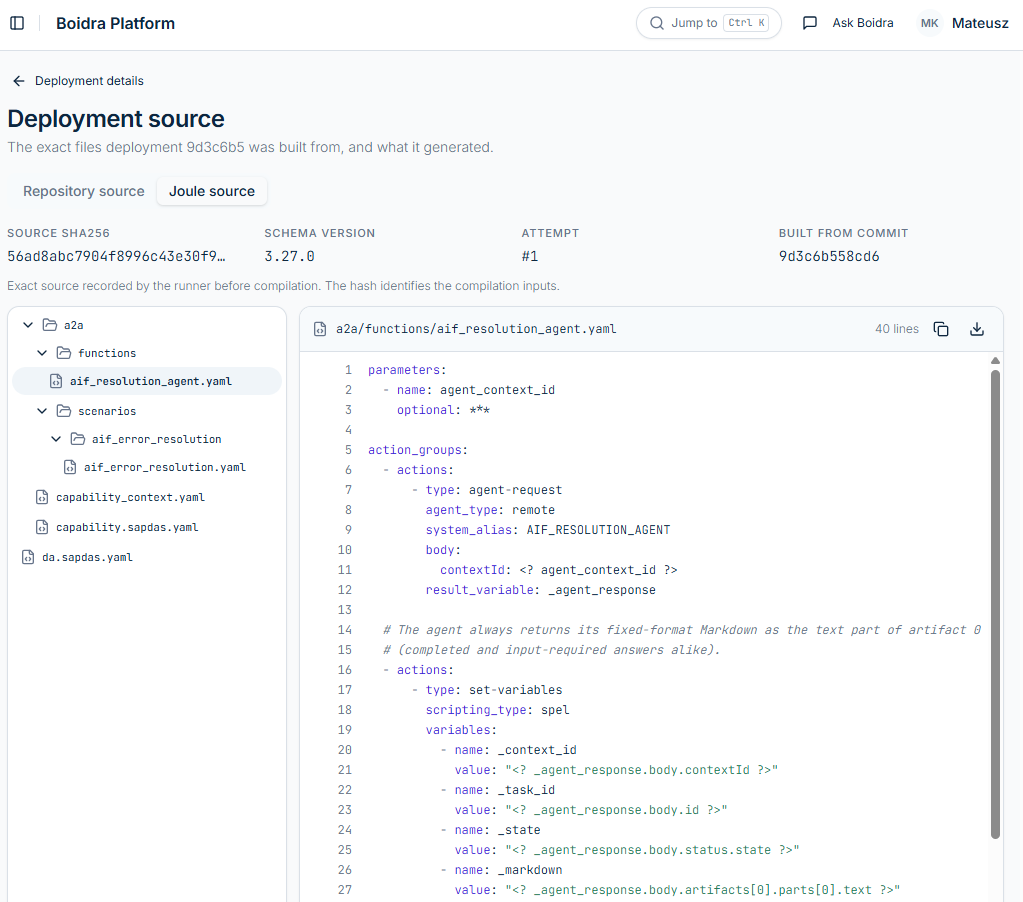
The Deployment source view adds another layer of evidence. It has Repository source and Joule source tabs, a file tree, and a source viewer. For the Joule source, it also shows the source SHA256 hash, the schema version, the compilation attempt, and the commit the build came from.
The team can inspect the exact source recorded before compilation and the generated Joule files for any deployment. When investigating an integration issue, reviewers can examine the capability definition that was actually deployed, rather than relying on the current state of the repository. If you are new to how Joule calls an external agent, Connect any agent to SAP Joule with A2A walks through these files in detail.
15. Promote from prototype to production
Once the development version is validated, use Promote to Production on the agent overview to start the production deployment. Promotion is easy to find, and the move from prototype to live usage stays within the same platform.
The full sequence is straightforward: develop locally, push to deploy to Development, test through A2A chat, Joule, or a connected Copilot experience, collect evidence, then promote the validated version to Production. Before promoting, review the production configuration, including the intended SAP connections and user access.
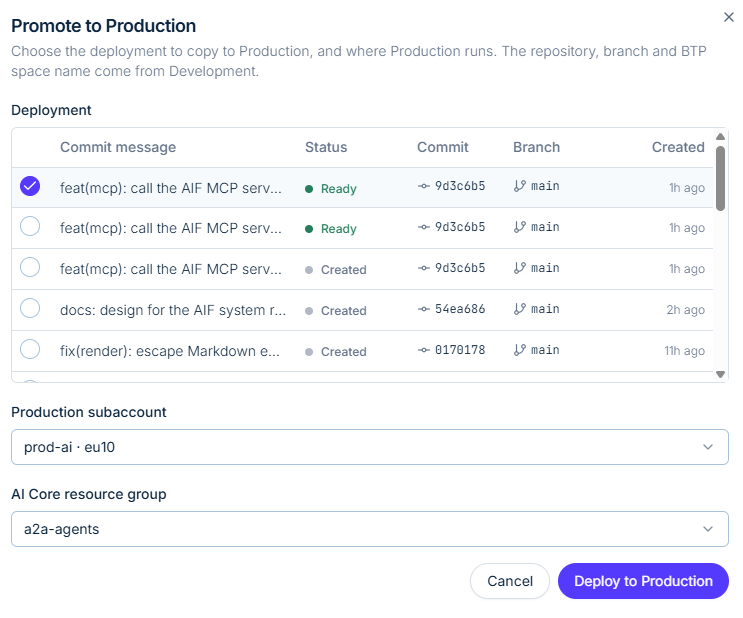
The Promote to Production dialog makes the choice explicit:
- Choose the development deployment to copy, using its status, commit, branch, and creation time to identify the validated version.
- Select the Production subaccount.
- Select the AI Core resource group.
- Review your choices and select Deploy to Production.
The repository, branch, and BTP space name are taken from Development. This ties the promotion to the selected development deployment, while the production destination is chosen explicitly.
After deployment, confirm the production status in the deployment history and run a representative business scenario against the production environment.
FAQ
Do I need SAP Joule to test an SAP AI agent?
No. You can test the deployed agent in Boidra's A2A chat, or from any A2A-compatible client, and add the Joule integration when you are ready.
Can I develop an SAP AI agent locally against real BTP services?
Yes. In a hybrid setup, the agent runs on your machine while bound to service instances in the BTP development subaccount, such as SAP AI Core. When the version is ready, a push to the repository deploys it to Development on BTP.
Can the same agent work in SAP Joule and Microsoft Copilot?
Yes. Joule reaches the agent through the Joule integration that Boidra deploys, and Microsoft Copilot Studio can connect to it as an external agent over A2A. The Copilot Studio connection is configured separately.
Can several agents share one Joule assistant?
Yes. Boidra lists the existing Joule assistants with who can access them, the capabilities they already have, and the environment they live in, so you can add a new agent's capability to an assistant your users already work with. In the AIF example, the monitoring and error-resolution agents share one assistant.
How do I know which version of the agent produced an answer?
Every deployment records its branch, commit, and status, and every trace records the request, the tools that ran, and the result. Record both in your test evidence and you can tie any answer to the code behind it.
How do I move a validated agent to production?
Open the agent overview, select Promote to Production, choose the validated development deployment, the production subaccount, and the AI Core resource group, then deploy.
From first commit to production
Guided creation, a generated skeleton, local hybrid development, push-triggered deployments, visible build stages, traces, and a dedicated promotion step reduce the coordination needed to take an SAP agent from a first experiment to a working deployment.
The path is easy to follow: connect a repository, let Boidra generate the skeleton, choose or share a Joule assistant, develop locally against BTP services, push to deploy to Development, test and inspect, and promote when the agent is ready. Teams can evaluate the agent in A2A chat without Joule, connect it to Joule, or bring it into Microsoft Copilot through Copilot Studio's A2A connection, with source, deployment, and test evidence behind every step toward production.
Want to try this with your own SAP agent? See Boidra Platform or book a demo.
Keep reading
New SAP AI Core Calculator 2.0
What does an SAP AI agent really cost? Explore SAP AI Core Cost Calculator 2.0, understand Capacity Units, and compare model consumption. A worked example shows how orchestration and prompt optimization can outweigh foundation-model costs and why budgeting for the complete workflow matters.
Building observable AI agents, explained with a business example
What observability means for AI agents in SAP - explained through a simple invoice-approval agent, with a telemetry table any finance or engineering lead can read.
Telemetry in AI: why it matters and how it improves testing
You cannot test what you cannot see. AI telemetry - a span for every agent step - turns non-deterministic systems into something you can measure, regression-test and trust.